The app connects to the WooCommerce website via REST API, so you will need to generate API keys.
News app: you can skip this step.
Go to: WooCommerce > Settings > Advanced > REST API
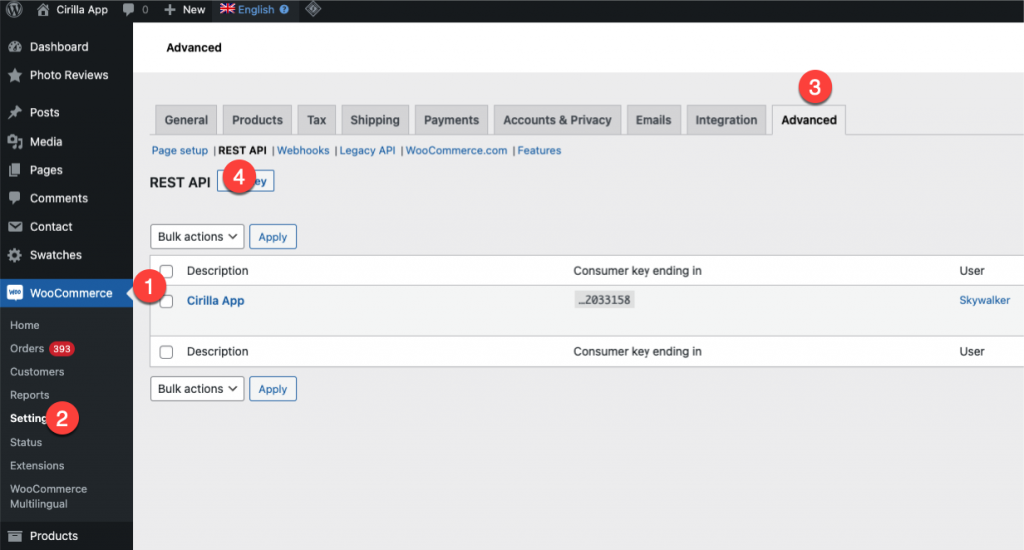
Click the “Add Key” button.
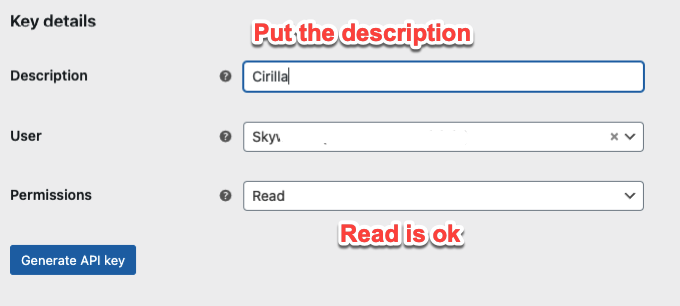
Click to Generate API key button
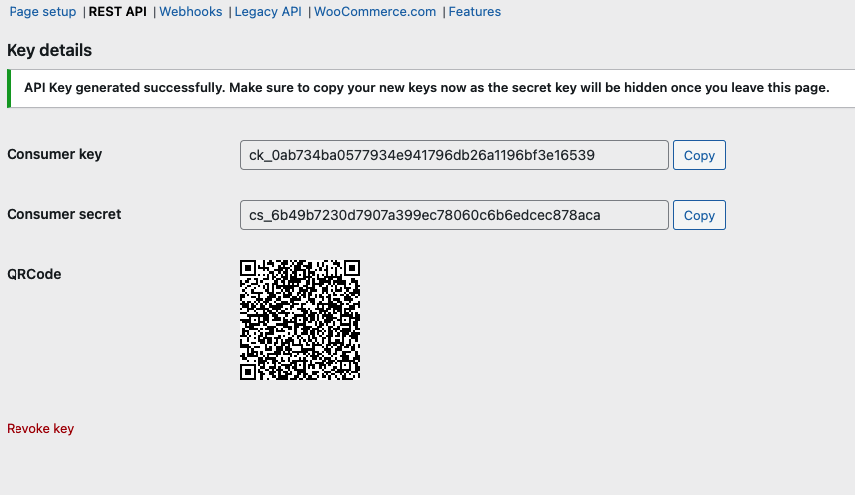
Note 1: Copy and save it secretly because you won’t be able to copy it again if you leave the page.
Note 2: The Consumer Key & Secret will be used to configure the app in the step Update rest API key.
Note 3: Please do not delete the user linked to the key. Doing so may cause issues with the app connecting to your website..
Note 4: Ensure permalinks confined this step
Generate App Builder Key
Dedicated authentication layer for App Builder REST API, ensuring your mobile app communicates securely with your WordPress backend.
Note: If you are using the LiteSpeed Cache plugin or any caching plugin. Please exclude the following two paths:
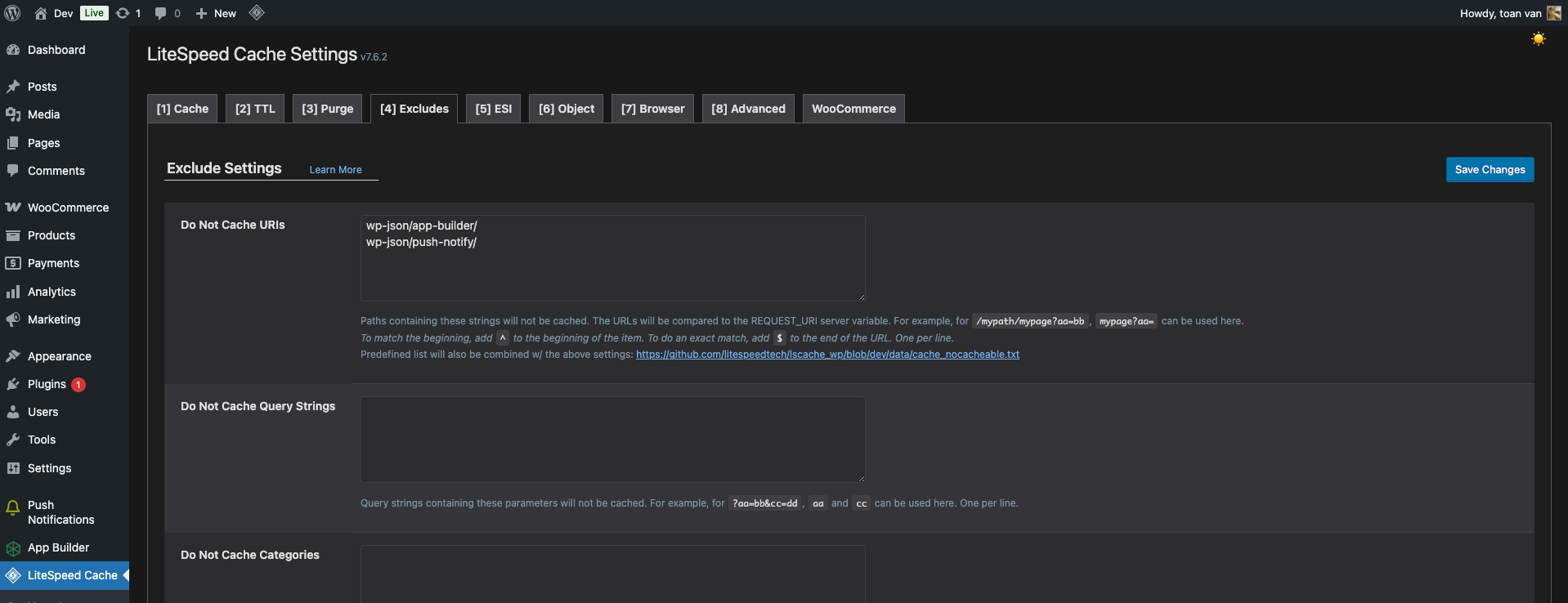
wp-json/app-builder/wp-json/push-notify/
Requirement
- App Builder plugin
v5.5.8or above - Push Notification Mobile And Web App plugin
v2.0.4or higher - Cirilla
v4.3.2or above
Go to: App builder > Advanced > Generate App Builder Key
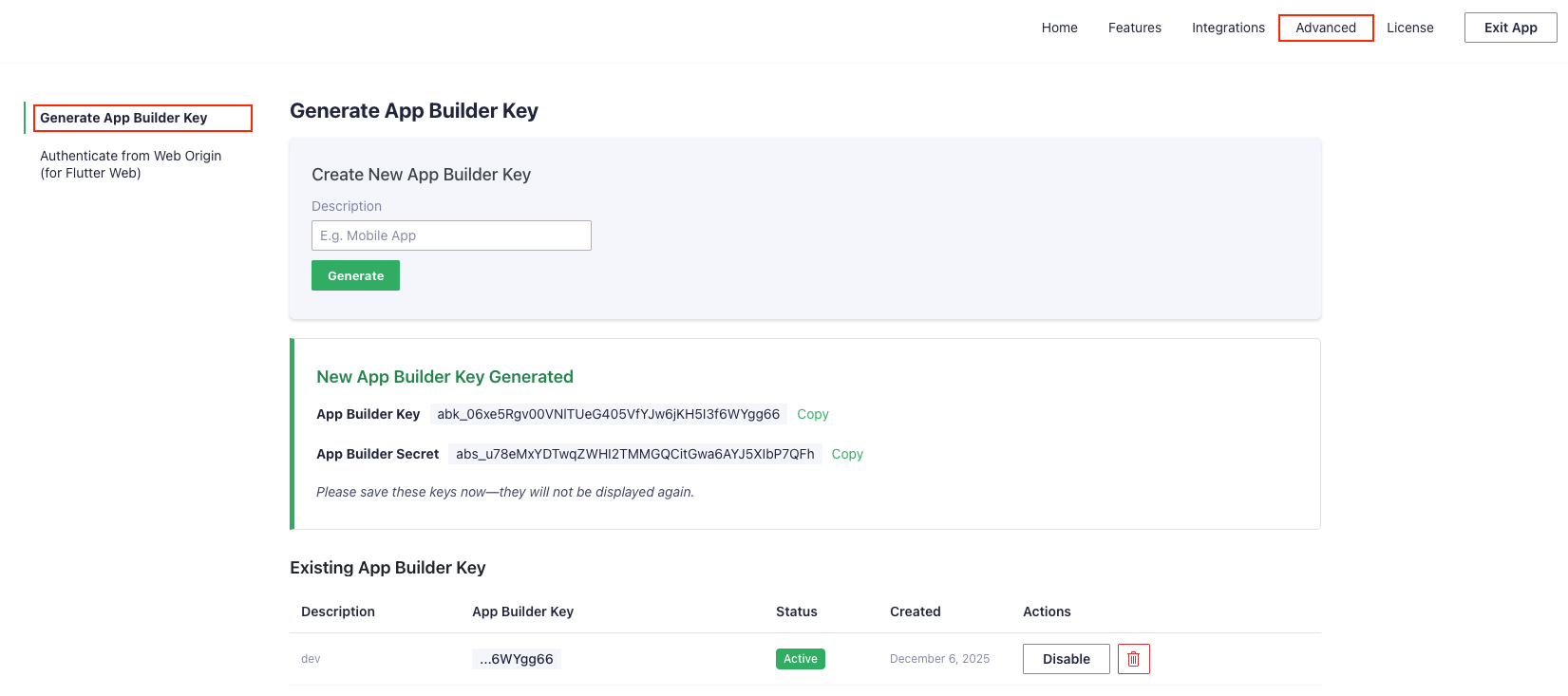
- Copy and save it secretly because you won’t be able to copy it again if you leave the page.
- The App Builder Key & Secret will be used to configure the Cirilla App
- Open file:
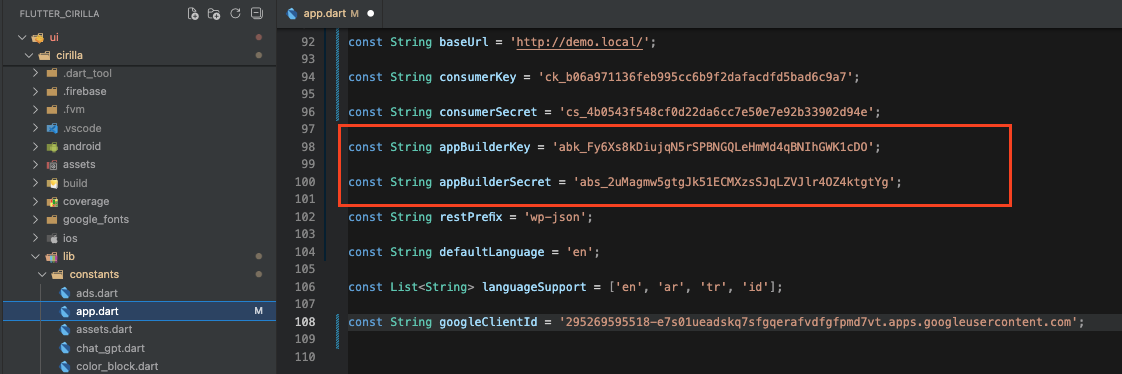
cirilla/lib/constants/app.dart - And replace your App Builder Key with below info in app.dart file:
const String appBuilderKey = 'abk_xxxxxxxxxxxxxxxxxx';const String appBuilderSecret = 'abs_xxxxxxxxxxxxxxxxxx';
- Open file:
- Please do not delete the user linked to the key. Doing so may cause issues with the app connecting to your App Builder.